How to Create an Internal FX Payout
- Go to the Accounts Payable module.
- Click the Create Payout button located in the top-right corner of the screen.

A payout form will slide in from the right-hand side. Fill in the required details:
- Select the account you wish to send money from.

- Then you'll need to select the destination. Select internal account; a list of your accounts will appear for selection:

- Enter the amount you wish to send. You can either send in the original currency, or send in the destination currency.

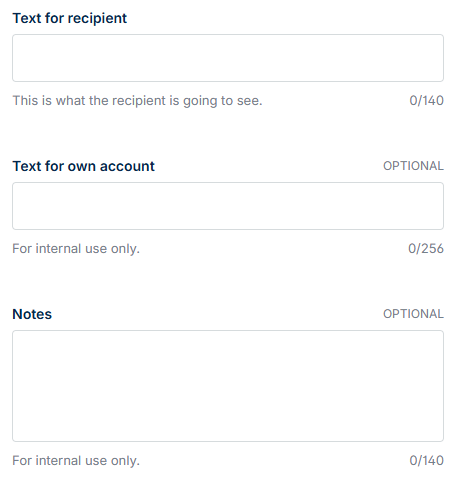
- Enter the Text for recipient, i.e., payment reference. This text will appear on the recipient’s statement.
- Enter the Text for own account, i.e., an internal reference. This will not be visible to the recipient.
- Add any notes for your team. This will not be visible to the recipient.
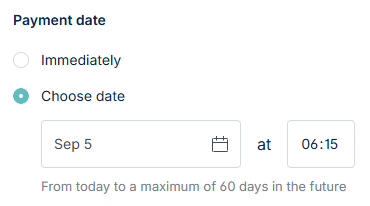
- Choose whether to send the payout immediately or schedule it for a future date. Note, if sending in a future date, the indicative rate may change. You can only hold a rate via the API.
Authorisation Options
Your authorisation options depend on your user permissions:
- If you have authorisation permissions enabled: Click Create payout or Save for later authorisation. You’ll confirm the payment using multi-factor authentication (MFA).
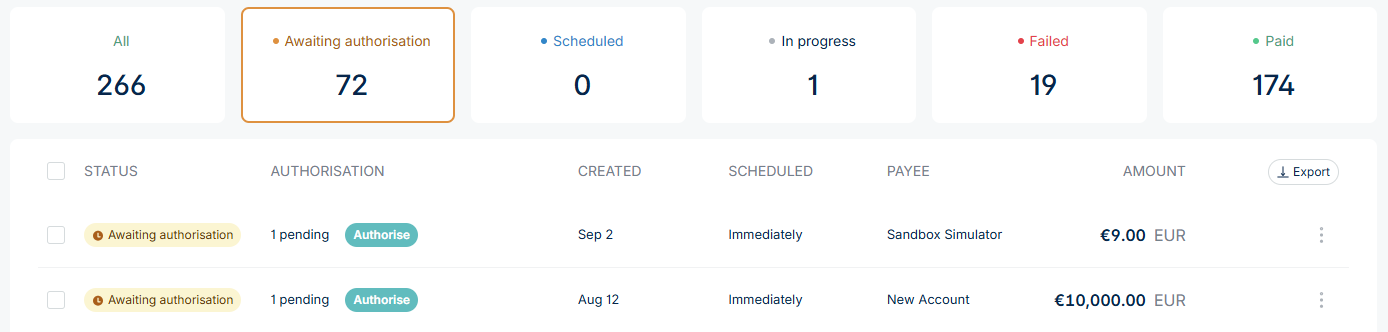
- If you do not have authorisation permissions enabled: Click Create payout. The payout will appear in the 'awaiting authorisation' tab and need to be authorised by a user with authorisation permissions enabled.
On the Authorisation page you will be able to review the FX rate. Once you're happy to proceed, click Authorise. Alternatively, you can click do it later and the payment will save under 'awaiting authorisation'.

Once submitted, the payout will appear in the AP table, listed under the Awaiting authorisation tab for further action or under the Paid tab if authorisation has been complete.