How to Use the Bulk Payment Request CSV Template
To make the bulk import process seamless, we recommend downloading and using the official NoFrixion CSV template. This ensures all required fields are correctly formatted.
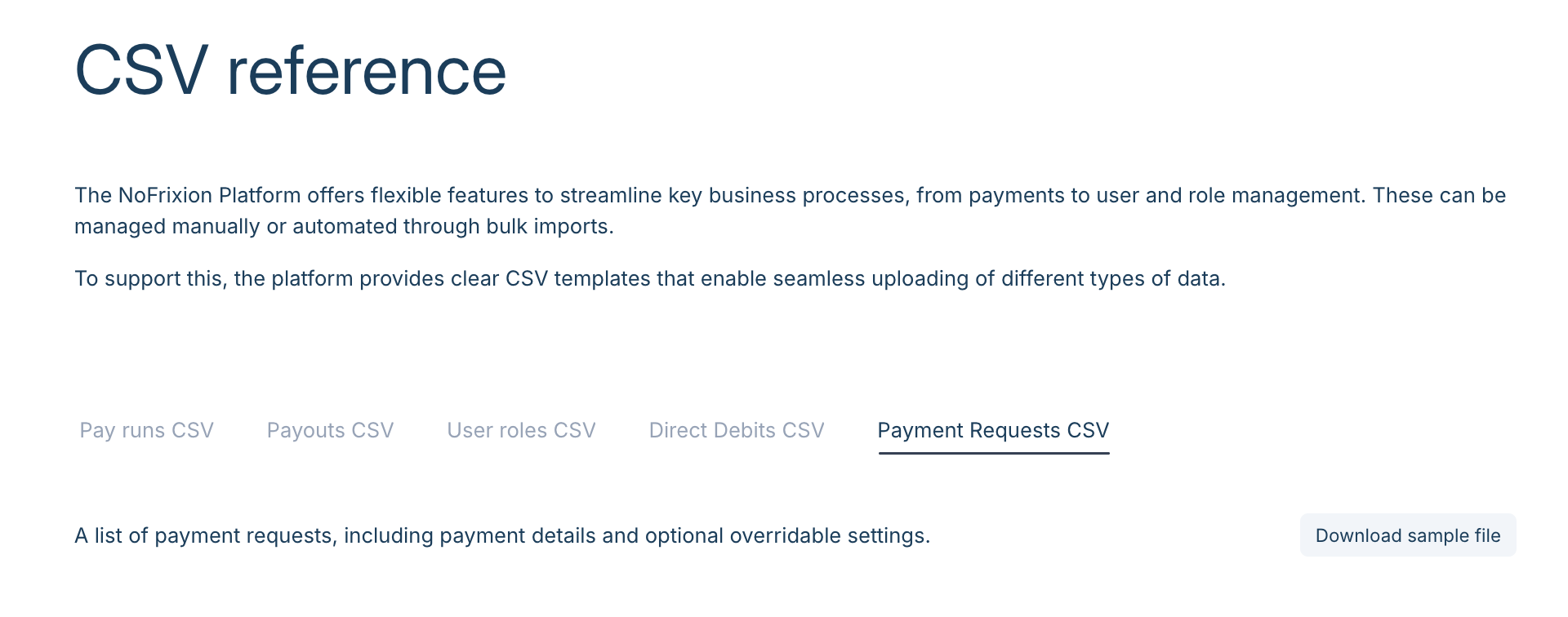
How to Download the Payment Request CSV Template
- Go to this link: CSV guides
- Navigate to the Payment Requests CSV tab.
- Select Download sample file to get the template.
CSV Guidelines
To avoid errors in your CSV file, review the CSV Guidelines provided via the link on the upload page.
The guidelines include a reference table showing:
- Description → Explanation of each field
- Valid Format → The correct data format required
- Example → A sample value for guidance
- Requirement → Whether the field is Required, Optional, or Conditional
Key Things to Know
- Conditional fields are required or optional depending on the Payment Request settings defined for your account.
- Fields that contain only blank spaces (no actual text or data) are not accepted.
- Maximum 150 rows per file.
- Custom field column names cannot collide with any built-in column name.
For the full list of fields, their valid formats, and examples, see the CSV Guidelines on the upload page.
A Note on Payment Request Settings
Before building your CSV, check your Payment Request Settings:
- If a field (such as Payment Methods or Allow Partial Payments) is set to Don't allow override, do not include a column for it in your CSV - doing so will cause the import to fail, even if the value matches your existing setting.
- Any custom field must already be created in your settings, and the CSV column header must match the custom field name exactly, including capitalisation.
Using the template together with these guidelines will help ensure your file is properly formatted and ready for upload.