
How to Import / Export Your User Roles
To import or export roles, follow the below steps:
- Log in to your NoFrixion account.
- Navigate to the arrow icon beside the merchant name, and click on it. A dropdown menu will appear.
- Click on System administration.
- Click on the Roles and permissions tab. You'll see all roles listed in the table:
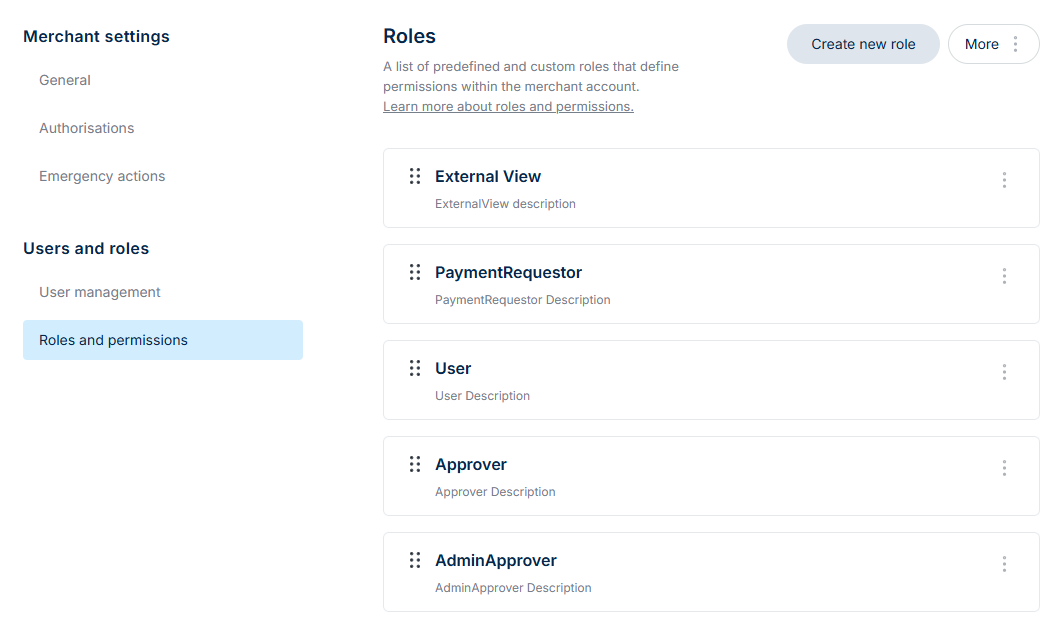
- Click the More button:

How to Import Roles
To import a list of roles into the platform:
- Select Import roles. A new page will appear where you can upload a CSV file.

- If you don't have a CSV file, click on the Look how to use the CSV template link.
- Go to the User roles CSV tab.
- Click on Download sample file.

- Follow the guidelines and input the information into the file. Save the file and upload it from your device.
- Review the file to ensure it's correct. Click on the arrow icon to see what permissions will be enabled for each role. Click Import X roles.

How to Export Roles
To export a list of roles into the platform, simply click Export roles and a CSV file will begin downloading immediately.