How to Assign Roles to Specific Accounts ("Scope")
To assign a user to a specific payment account, follow the below steps:
- Log in to your NoFrixion account.
- Navigate to the arrow icon beside the merchant name, and click on it. A dropdown menu will appear.
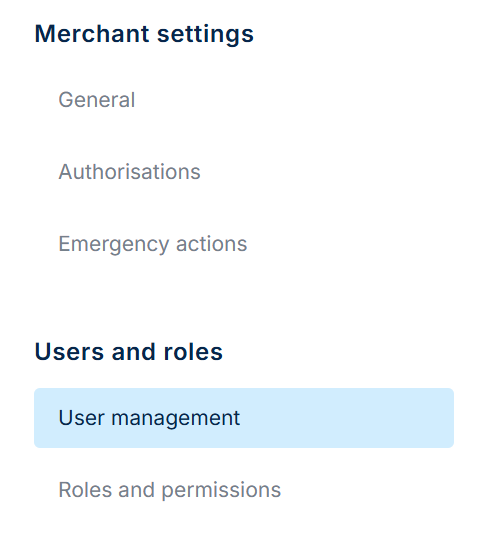
- Click on System administration.
- Click on the User management tab. You'll see all invited, pending and active users on the table.
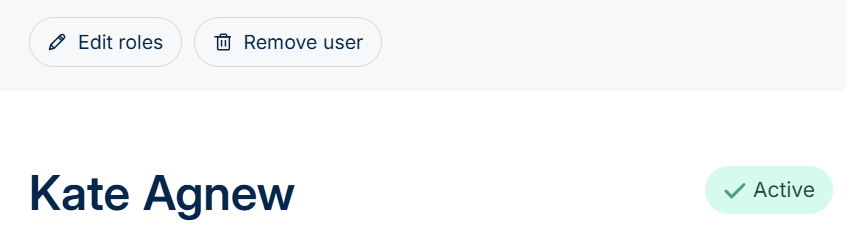
- Click on the appropriate user.
- Click the Edit roles button above the user's name.
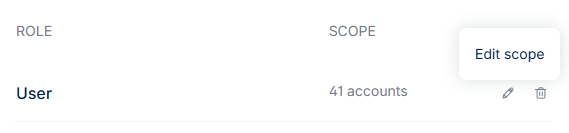
- Click on the pencil icon beside the role and scope to edit the scope of the role that's assigned to the user. In the screenshot below, the User role is assigned to 41 accounts across the merchant:
- Tick the box of the accounts that you want the user's role to have access to.
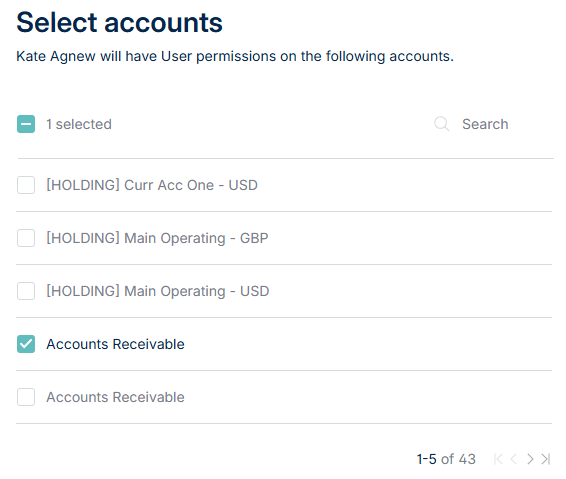
- Click on the Save button.
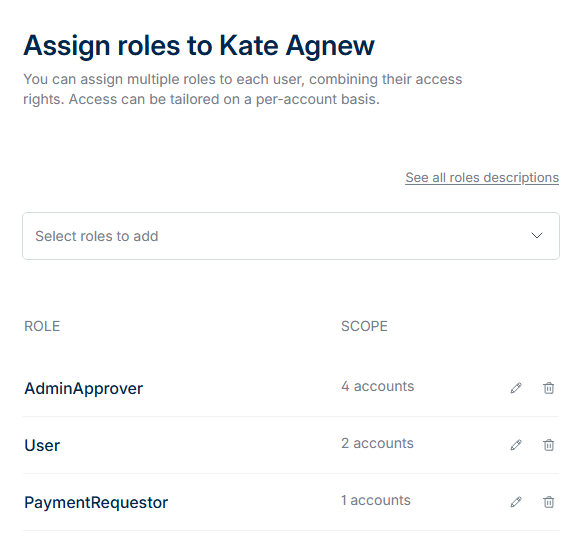
- Now you can see a breakdown of the roles and their scope (i.e., the number of accounts selected) under the user. Remember that roles aggregate if assigned to the same payment account. If everything looks correct, click Assign Roles at the bottom of the sidebar.
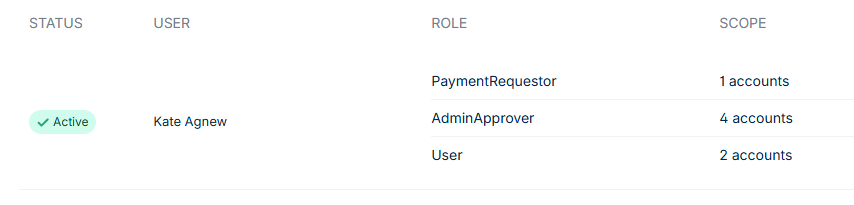
The updated breakdown will now appear on the User table:
Search Feature
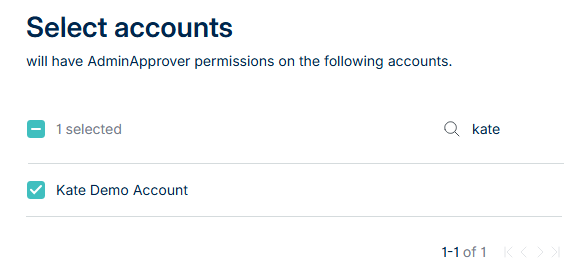
You can search for specific accounts by entering the name into the search bar.
For example, if you search 'kate' then 'Kate Demo Account' appears: