How to Assign a Role to a New User
There are two ways to assign a user with a role:
- Directly on the Platform
If you have invited a user to the NoFrixion platform, and they have accepted your invitation, you will receive an email confirmation from support@nofrixion.com. Click on the Assign roles now button in the email and follow the steps in the following section.
Platform
To assign a role to a user directly on the platform, without the email prompt, follow the below steps:
- Log in to your NoFrixion account.
- Navigate to the arrow icon beside the merchant name, and click on it. A dropdown menu will appear.
- Click on System administration (if you accessed the platform through the link in the email, you’ll be taken to this section automatically).
- Click on the User management tab. You'll see all invited, pending and active users on the table.

- Click on the Assign roles button:

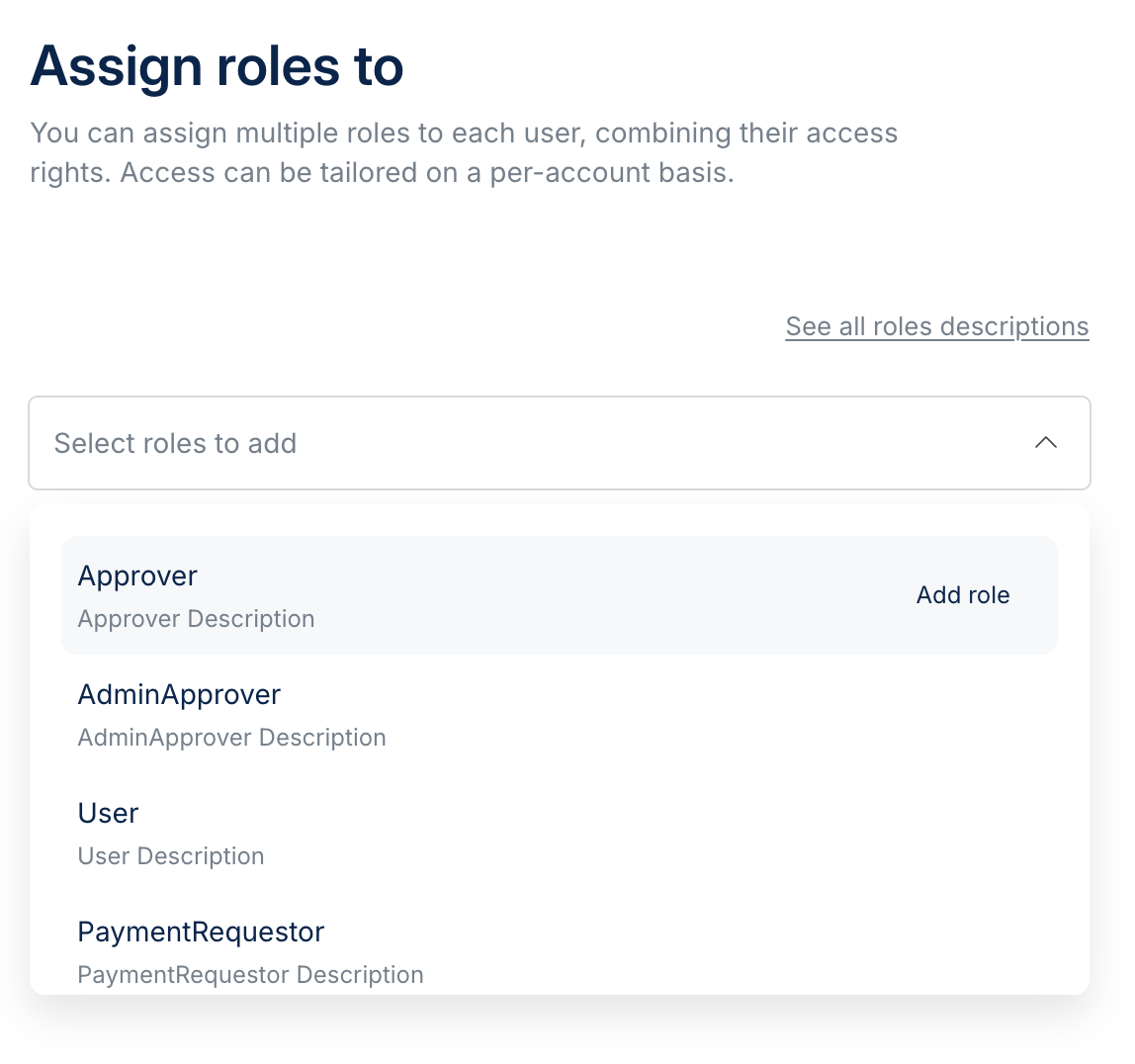
- Select the appropriate role from the list of available options. If you're not sure what role to assign, you can check what permissions are enabled by selecting See all roles descriptions. Note, you can add multiple roles if you wish:
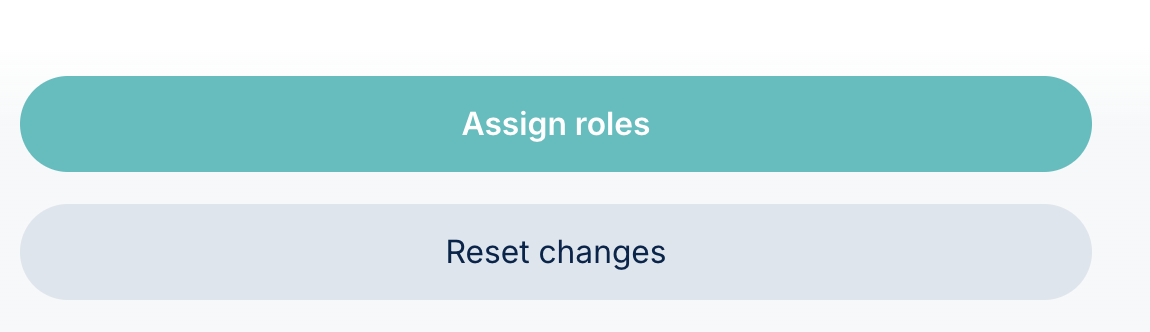
- Click on Assign roles to confirm your selection:
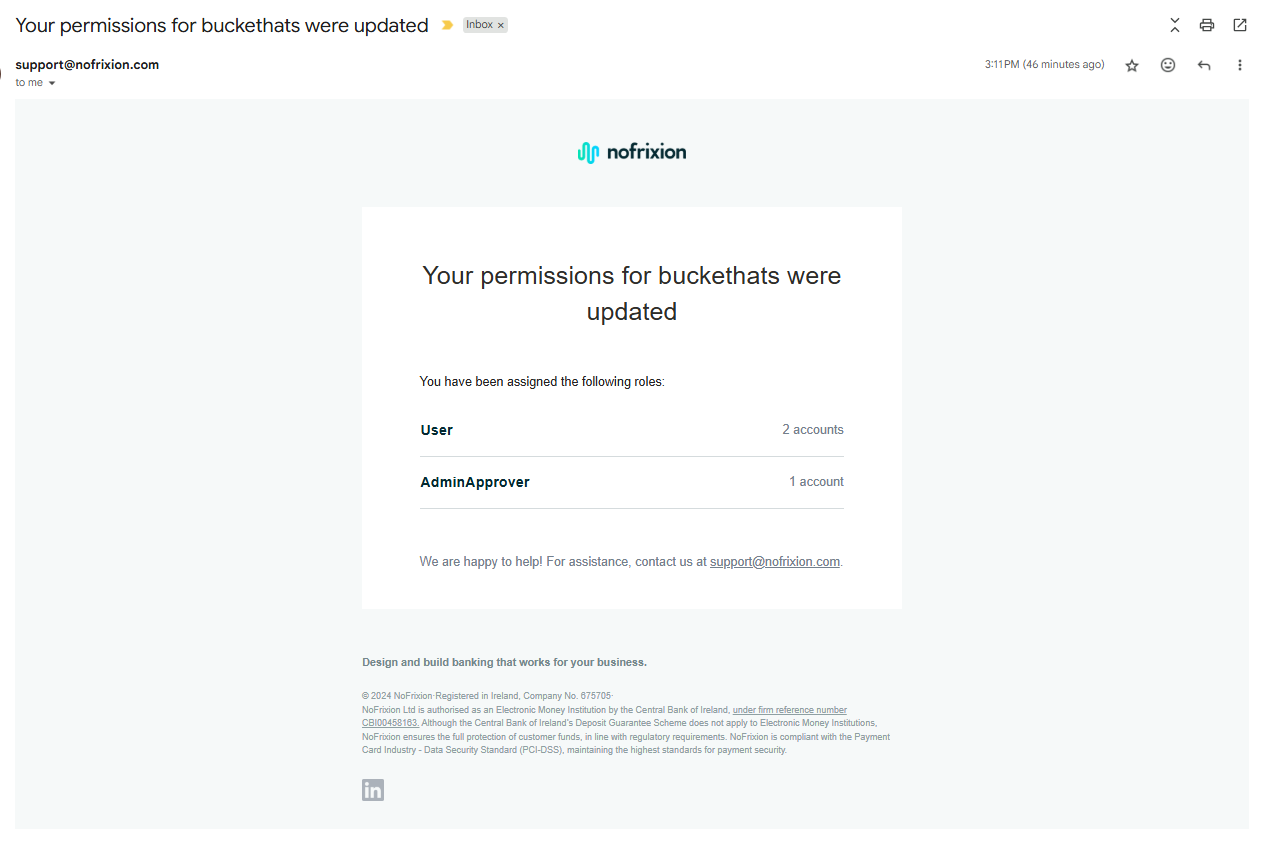
Once the role is assigned, the user will be able to gain access to the merchant. They will also be notified via email of any changes to their role and permissions: