How to Create a Pay Run
The Pay Runs feature is designed for businesses that need to pay suppliers directly from their NoFrixion accounts. It allows you to bundle multiple payouts, across different currencies, into a single pay run, giving you greater flexibility when managing international supplier payments.
- Go to the Accounts Payable module.
- Select the Pay Runs tab.
Note:
- Active pay runs are listed at the top of the page.
- Completed pay runs are displayed at the bottom.
- Once a pay run is authorised, the individual payouts it generates will appear in the Payouts tab.

- Click the Create pay run button in the top-right corner of the page.
- Choose one of the following options to add invoices:
- Import from Xero
- Import CSV file

- You’ll be redirected to a new page where you can upload your CSV file. Click on the link to upload it from your device. If you need guidance, click here.
Note: The CSV file for uploading a pay run is not the same as the file for uploading bulk payouts.

- Select your CSV file and upload it. Once uploaded, the platform will automatically organise your invoices and display the total count in the top-right corner. If there are invoices you don’t want to include, simply toggle them off.
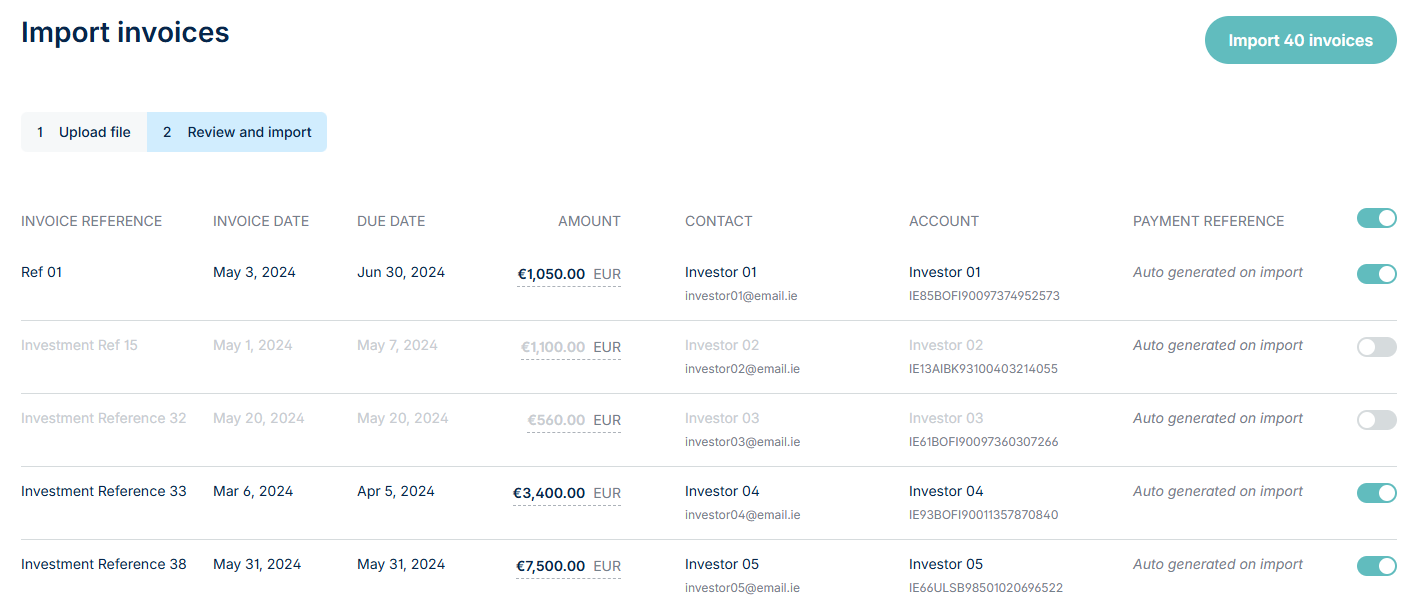
- If there are any errors in the CSV, the system will:
- Highlight the issue.
- Show where the error occurred in the file.
- Allow you to fix the file and resubmit.
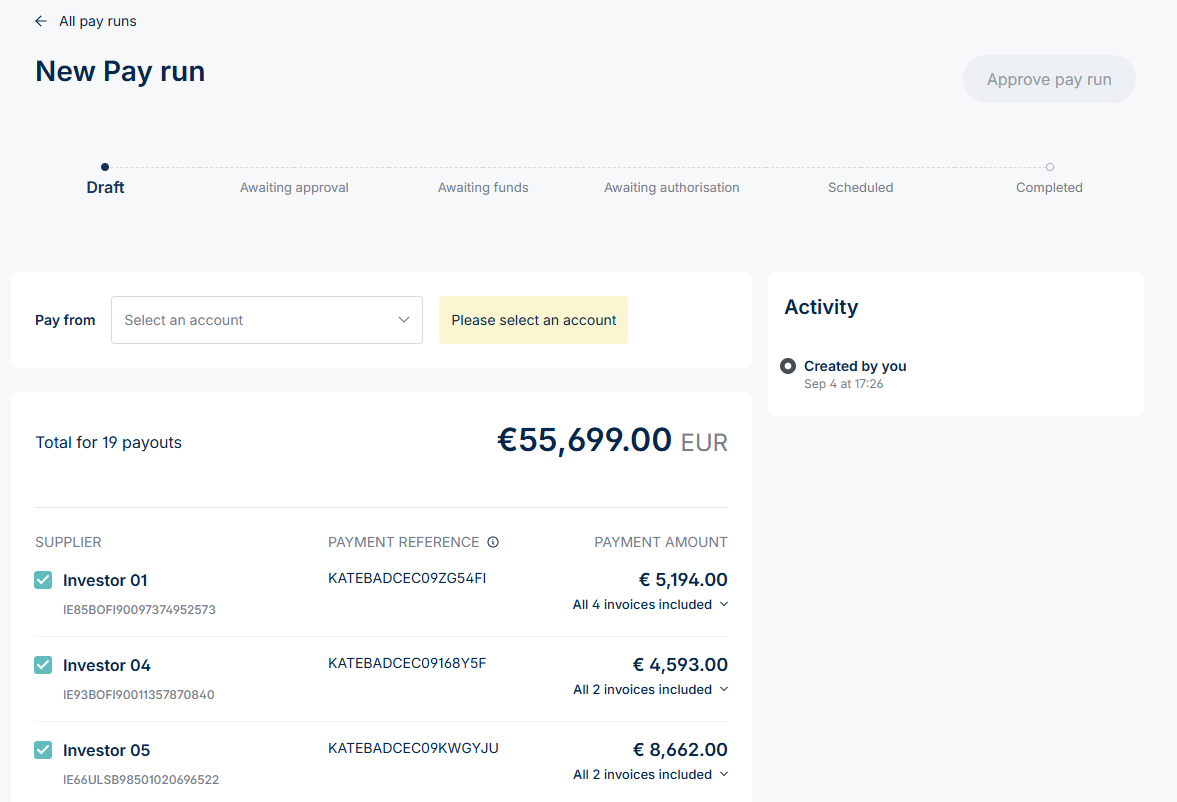
- After importing your invoices, you’ll be redirected to the new Pay Run page. Here, you can rename the pay run, choose the funding account, review the invoices and payouts, and finalise the next steps in the process.
Click here to understand the six stages of a pay run:
- Draft
- Awaiting approval
- Awaiting funds
- Awaiting authorisation
- Scheduled
- Completed
Once the pay run has been processed its status will update to 'Completed'. If you included emails in the CSV file, remittance emails will be sent to suppliers.
The individual payouts from the pay run will now be available to view in the ‘Payouts’ tab. You can identify a payout that's part of a pay run by noticing the icon beside it:
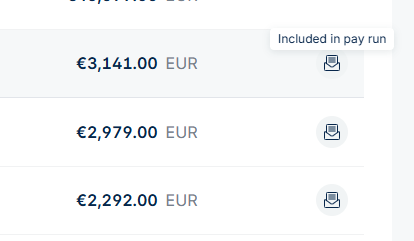
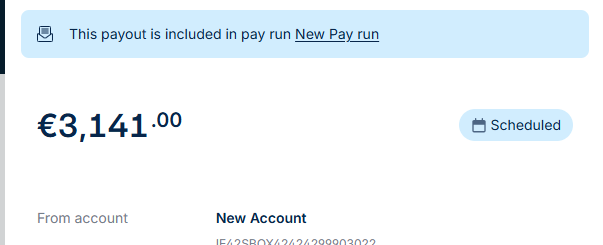
To return to the original pay run, click on the payment, and then select the pay run title to navigate back to its page: