
How to Refund a Payment Request
- Go to the Accounts Receivable module in the portal.
- Select the Paid tab to view all fully paid transactions.
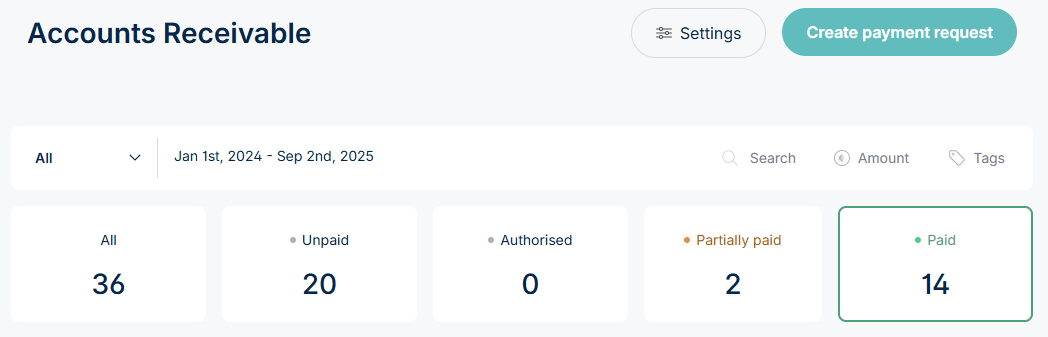
- Locate the transaction you wish to refund. Hover over it and click to open the payment details.
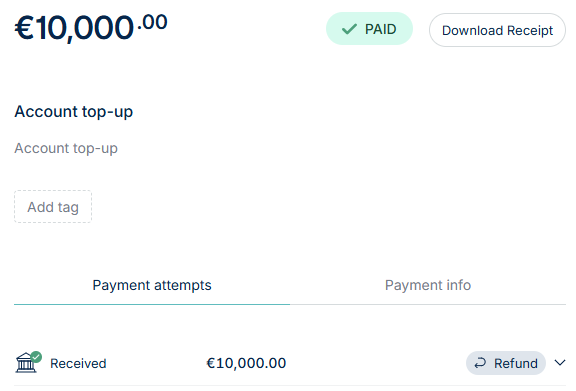
- A side panel will slide in from the right, showing the full payment details.
- Click the Refund button in the side panel:
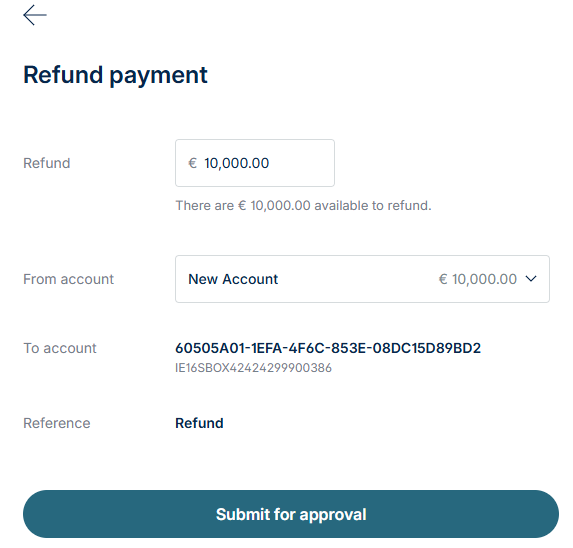
- Review the refund details carefully. You can edit the amount that you wish to refund if it differs from the amount that was paid. You can also select from which account the funds will be taken from.
- After reviewing the details, click the Submit for approval button. A confirmation message will appear briefly at the top of the page and a new payout will be generated for you to authorise.
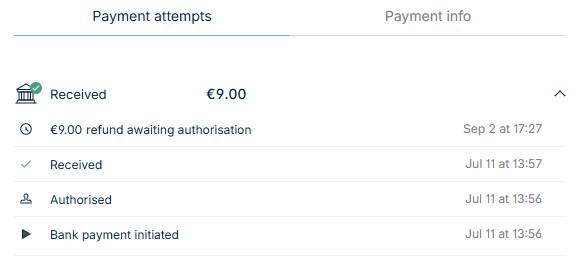
Note, information under the payment attempts tab will update automatically to reflect the refund.
If the customer paid via Open Banking (account-to-account transfer), the refund will automatically return to the original bank account used for the payment.
Refund Authorisation
Refunds must be authorised by a user with the appropriate permissions. A user with authorisation permissions can:
- Go to the Accounts Payable module.
- Click on the Awaiting Authorisation tab.
- Review the refund request and authorise the payout.
